Customising results box
Home › Forums › Product Support Forums › Ajax Search Pro for WordPress Support › Customising results box
- This topic has 3 replies, 2 voices, and was last updated 9 months ago by
Ernest Marcinko.
-
AuthorPosts
-
October 21, 2025 at 12:45 pm #55811
Steve Strutt
ParticipantHi Ernest, I am liking Search Pro greatly, and also challenged getting the styling I want for a photogprahic archive site.
The live search results format for my custom posts is too different to the search results page, so I want to suppress showing live results, but keep the no results found alert and repurpose the ‘More results’ to be a results count. I hoped that Setting Search Sources > Limits > results limit to 0 would just reduce the number of results lines to 0, but instead it causes the ‘no results found’ alert to be triggered. The alternative seems to be custom CSS to hide the div containing the results class. But so far I have not been able to create the correct CSS.
A second requirement is to style the asp_showmore block. I see the option to change the “More results.. “, text, so can change this. But is there a way of changing the text for the total results? Currently, it shows with () around the number. I would like to remove the () and apply CSS stlying to make it the same size as the No results alert.
On a search results page, is there a way to show the total number of results? I would like to add it to the text ‘Search Results for “”‘ With a block theme like TwentyTwemtyFive, this does not appear to be as simple as previously with classic. It looks like it needs a new ‘Search Results Title’ bloc. Am I correct?
October 22, 2025 at 9:11 am #55824KeymasterHi,
All right!
My suggestion to “hide” the results is to reset the limit to the default 10, as 0 limit will only cause issues.
Instead, I suggest this custom CSS to simply “remove” them:
.asp_r .results {
   display: none !important;
}
This will keep the results counter and the more results text but hide the result elements.
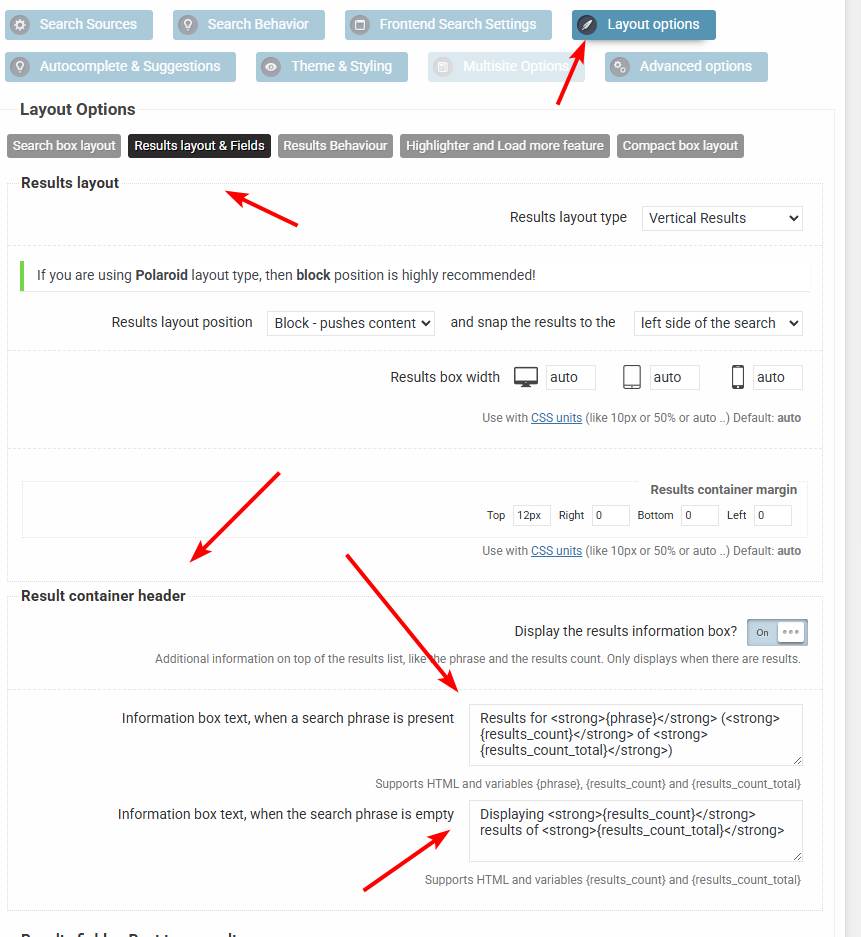
There is an option to change the results top bar, you can do it over here.
If you want to apply custom styling, then use this CSS selector:.asp_r .asp_results_top { // your rules here }I recommend using the !important modifier on all custom CSS rules, otherwise they may not take effect as the core rules are higher specificity to avoid conflicts with theme/other plugin styles.
The results page however is out of the plugin scope, it is all controlled by the theme. In block themes there is usally an option on the Loop/Query block to display pagination. I’m not too familiar with that, but it should be there somehwere. I don’t think there is a separate block for that.
October 22, 2025 at 3:37 pm #55840ParticipantThanks Yes that all works. I had missed the .asp_r out of my CSS. For the search results page, I came to the same conclusion yesterday: I need to create new custom blocks to display the content I want.
Again on the search results page, can Ajax Pro pass the filters that were applied to the search along with the search string? Only the search string is shown by the Search Results Title block in the ‘Search results for:’ area (As in the attached screenshot). Again, this may be block implementation dependent.
A related problem (and a reason to show the filter settings along with the search string) is that the search settings closes when I hit enter to initate the search. I can reopen it by clicking on the settings icon to show the filters selected, but I would like it to remain open to show the filters in effect. In the attached screenshot, the search settings has closed, but there is at least one filter applied.
October 23, 2025 at 8:51 am #55846KeymasterAgain on the search results page, can Ajax Pro pass the filters that were applied to the search along with the search string?
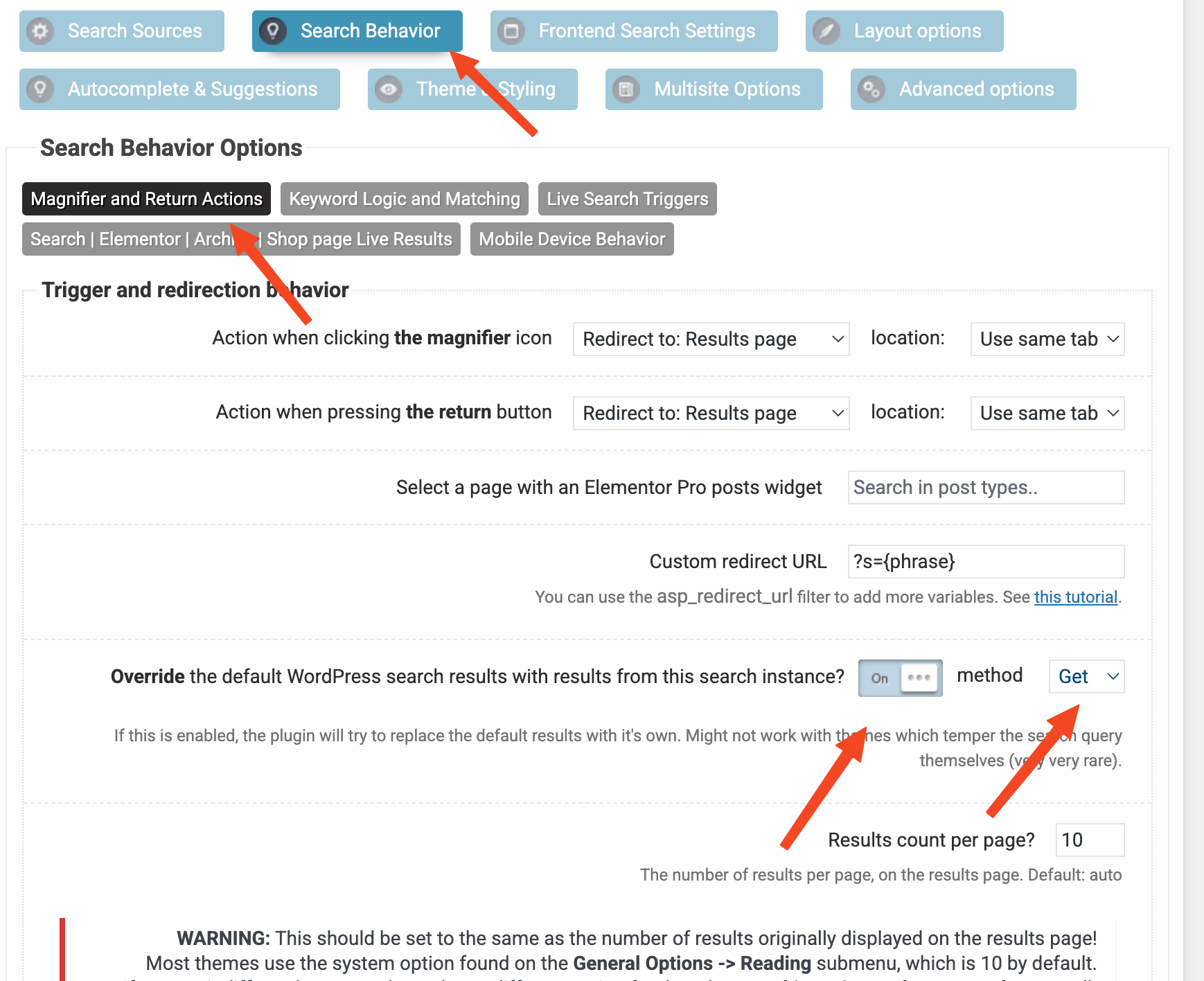
Yes, if the search was redirected to the results page from the same search bar and the search override is enabled. Then the filter states are sent with the query URL and automatically preset to that on the results page.
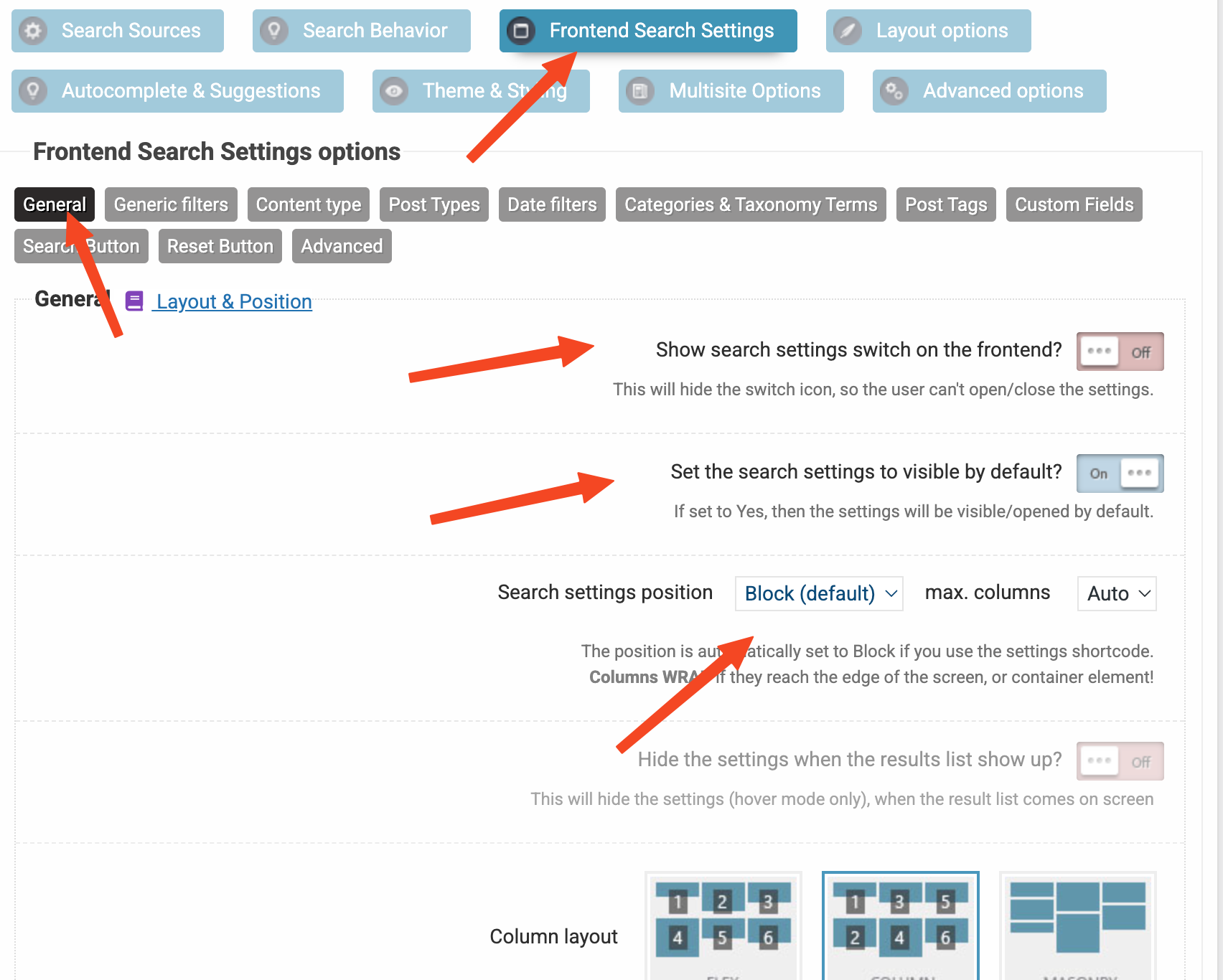
On results pages usually the best configuration for the filters box is this: https://wp-dreams.com/assets/support/2025-10-23_mJePe.png
This ensures that the settings are always visible, as a block and can’t be hidden via the switch.Another cool feature is that you can actually move the filters to a different block via the settings block/shortcode. For example, you want the search on top, the filters in a sidebar, then just use the settings editor block or the settings shortcode in that location.
-
AuthorPosts
- You must be logged in to reply to this topic.