WP/ Search not populating
Home › Forums › Product Support Forums › Ajax Search Pro for WordPress Support › WP/ Search not populating
- This topic has 28 replies, 2 voices, and was last updated 2 months, 2 weeks ago by
Ernest Marcinko.
-
AuthorPosts
-
December 13, 2025 at 2:37 pm #56518Keymaster
I don’t think a function will do a trick here, the original search form needs to be altered with an extra parameter. There is usually a searchform.php file in the theme directory, but it can be different, especially if it’s in the header. It might be somewhere in the header files or similar. It is differently for every theme, so it’s impossible to tell without going through all the source code.
March 26, 2026 at 12:20 am #57164opusuno_qeTz
ParticipantHi Ernest,
Back to this.. customer is complaining. I don’t think it’s your plugin, but I was wondering if there might be a way to remove the generatepress magnifying glass / search and add your search to the main nav? Thanks.
Here’s a link again so you can see the behavior https://capriolas.com
I reached out to GP and they told me to add this snippet.. but same results
add_action( ‘pre_get_posts’, function( $query ) {
if ( ! is_admin() && $query->is_main_query() && $query->is_search() ) {
// Only show WooCommerce products
$query->set( ‘post_type’, array( ‘product’ ) );
}});
March 27, 2026 at 12:43 pm #57175KeymasterHi,
Well, that snippet does nothing like that, it modifies the search query by adding the product post type.
While this is outside of Ajax Search Pro, I will try to give you possible suggestions. I think the easiest way is to simply hide the magnifier via a custom CSS:
span.menu-bar-item:has(.icon-search) {
    display: none;
}
This will do the trick 🙂
March 28, 2026 at 12:02 am #57176ParticipantThanks. GP can easily turn the magnifier on and off. The customer wants a search there..
March 28, 2026 at 11:28 pm #57178ParticipantIt’d be cool to have a MainNav option.
March 30, 2026 at 6:59 am #57182KeymasterI see. You can place the plugin shortcode as a navigation item, if the theme uses a classic menu. If it uses the block editor, then simply put the ajax search pro block there.
April 15, 2026 at 4:09 pm #57303ParticipantThanks Ernest. Can it be styled to show only the magnifying icon prior to search? Like the attachment.
April 16, 2026 at 7:37 am #57310KeymasterYes – through the compact box layout. It is a pop-out search style, good for narrow/navigation areas.
April 16, 2026 at 5:39 pm #57317ParticipantThank you! Sorry. There’s so many nested options I get lost in the layout! : )
April 16, 2026 at 7:16 pm #57318KeymasterNo worries! I just released an in-depth video on different compact box use-cases, in case you are interested.
April 16, 2026 at 8:46 pm #57319ParticipantHi Ernest,
I just watched it.. It’s too bad it’s not as easy as adding a short code to the main menu and inherit the style. Still, far superior to the build in search. I’ll work on it this weekend. Thanks!
May 7, 2026 at 3:01 pm #57401ParticipantHi,
It’s me again.. Got delayed by many things and finally circling back to the magnifying icon in the MainMenu
Since it’s been a few weeks I went back to the docs … and I have a 2 questions
1. Would it be possible to use the short code in the main menu and collapse the search field until the user clicks on the icon?
Or will must I go the path of using CSS to positioning it relative to the menu like you do here:
https://documentation.ajaxsearchpro.com/layout-settings/compact-search-box-layout
2. In this doc: https://documentation.ajaxsearchpro.com/getting-started/shortcode-generator
There is a screen shot and under the 40% in the graphic you have a “facet” type menu.. How are you achieving this?
I attached a screen shot and put a box around it if I’m being unclear…
Thanks again for all your support.
May 7, 2026 at 9:48 pm #57403ParticipantHi Ernest,
I found this hinting for something else. And wanted to share it as see it might be something on your road map…
https://woocommerce.com/products/ajax-instant-search/
They have the short code for the menu.
Here’s an example of it in use
https://adasignfactory.com/product/lab-sign/
Still am curious about the “facets” in your screen shot but want to show you this because I feel like I don’t clearly describe what it is I’m talking about 🙂
May 8, 2026 at 9:01 am #57404KeymasterHi!
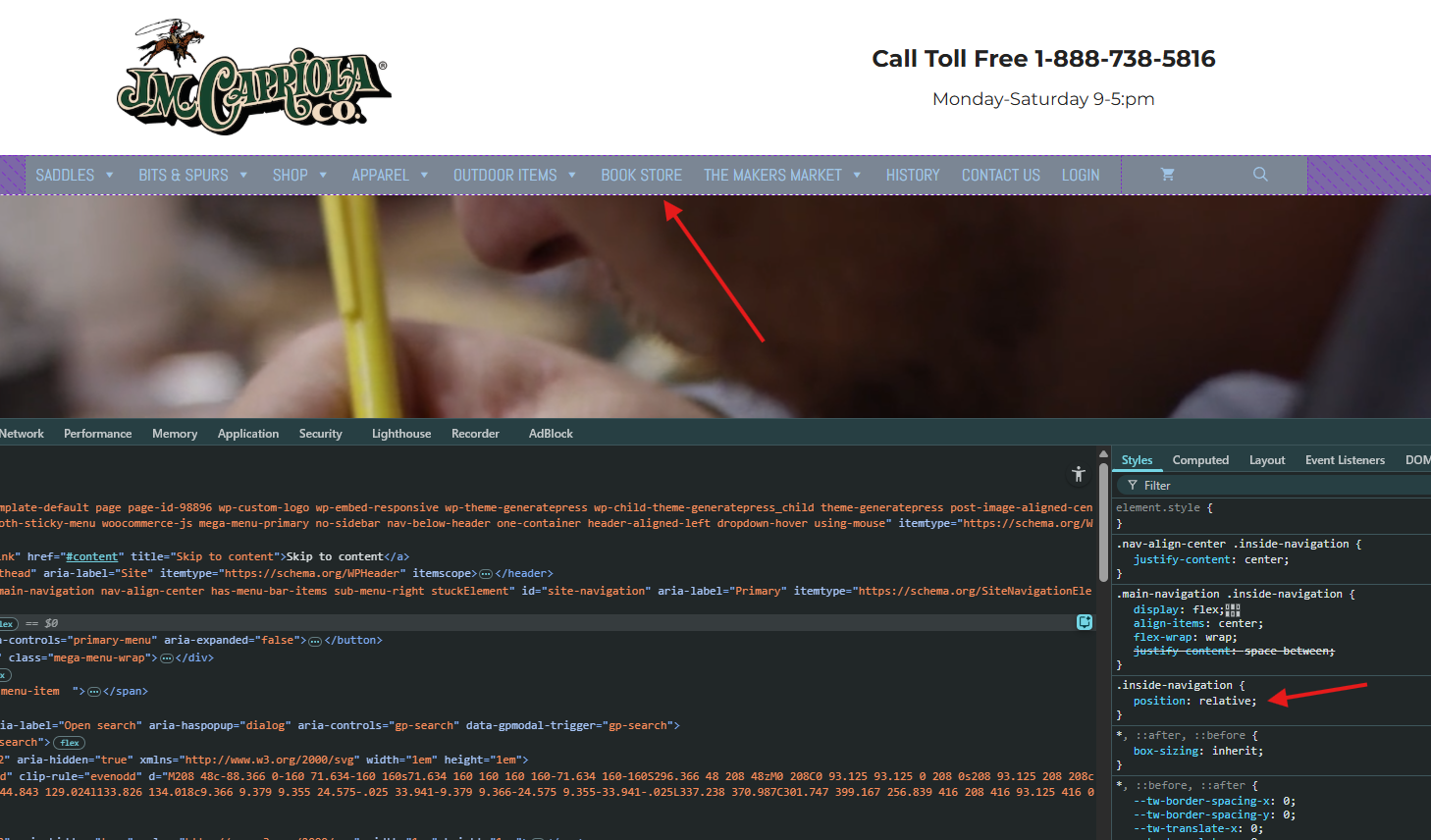
1. Positioning it relative is likely what you want. However your manu container is already in a relative position, I just checked, so that is already covered.
If you place the search icon to that container (ex. as a menu item), then set an absolute position of 0 to the right and auto to the left, then it should be positioned relative to that.2. Those are the actual search filters. If they are set as visible by default, then using the shortcode generator or the setting module or shortcode you can poisition then anywhere away from the search bar on the same page. This setup is very similar to that and here is a step-by-step tutorial for it.
-
AuthorPosts
- You must be logged in to reply to this topic.