Forum Replies Created
-
AuthorPosts
-
June 18, 2026 at 5:57 pm in reply to: ASP Staging to Production Activation, Upgrade, and Account Transfer #57648
Ernest Marcinko
KeymasterYou cannot access this content.
KeymasterHi!
There is no direct font size setting for that, but it’s doable via a small custom CSS snippet:
.asp-try a {
    font-size: 18px;
}
I hope this helps!
All the best,
ErnestKeymasterYou cannot access this content.
KeymasterHi!
I assume you mean the results page, so for example this link?
If so, the results page layoud/design is not controlled by the plugin, it is a theme/page builder feature. Usually themes do have an “edit” button on the search results page, which launcesh a customized, where you can change the field order manually.
If you are using Divi or similar, then those also have an “Edit template” button on the archive page, where it’s possible to change the order of the fields.
All the best,
ErnestKeymasterYou are very welcome!
I have noted this as an issue, in tomorrow’s plugin update there will be a core fix for it, so even if show_in_rest is not defined or set to false, the plugin will display the post type in the list correctly.
If you don’t mind, I will close this topic soon and mark it as resolved, feel free to open another one if you have other questions or issues.
If you like the plugin and have not rated already, feel free to leave a rating on the wordpress plugin repository, it’s greatly appreciated and helps us a lot!
All the best to you,
ErnestKeymasterHi!
You can change the source image size under the Search Sources -> Image options panel:
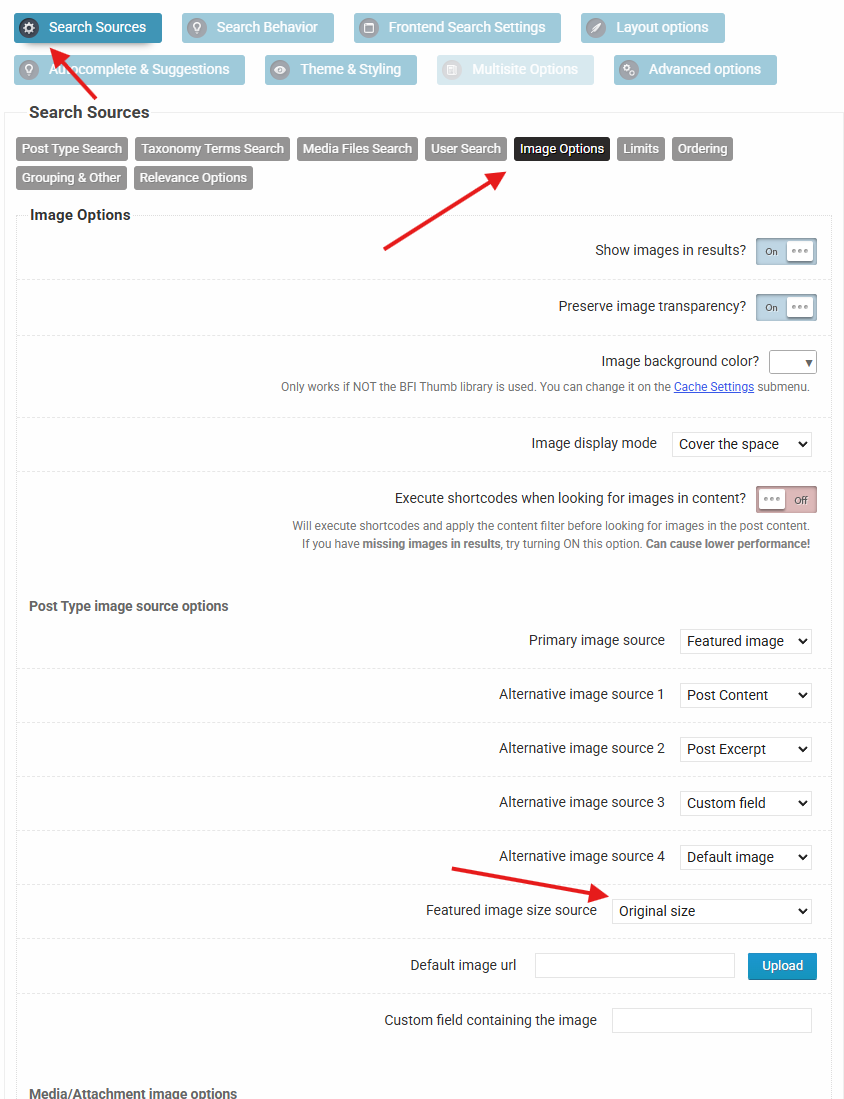
That should do the trick!
All the best,
ErnestKeymasterHi Michael,
Thank you very much for your kind words, I really appreciate them!
If you registered the post types programmatically, then the most likely cause is that they might not be allowed in the Rest API, so wordpress doesn’t return them for the new UI.
Adding the show_in_rest argument to the post type registration should resolve it:'show_in_rest' => trueAll you need to do is add this argument to the register_post_type function arguments and that should resolve it.
All the best,
ErnestKeymasterThank you for your offer, unfortuantely I am not available for custom jobs, working on the main plugin consumes ~14 hours a day.
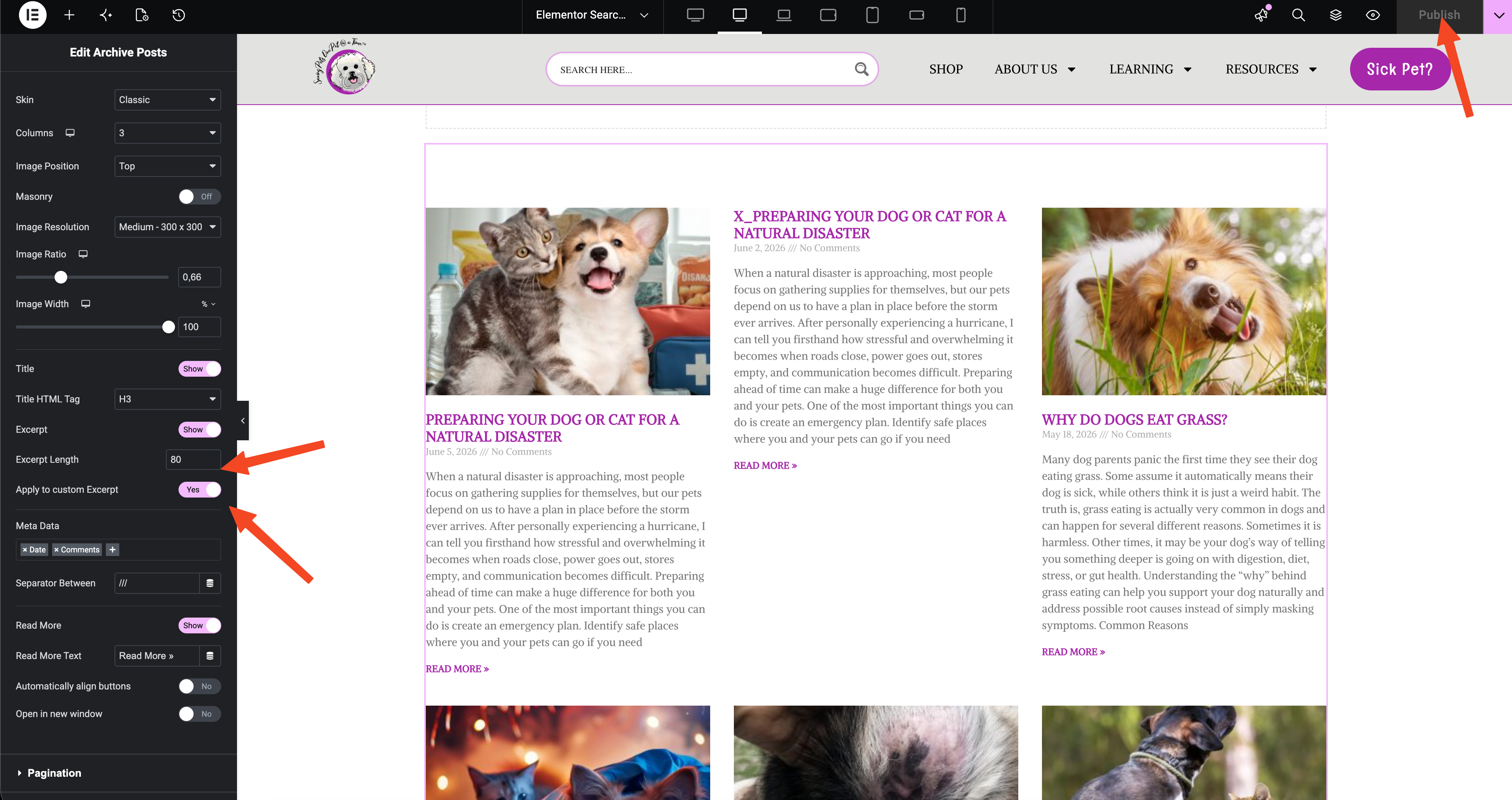
Lucky for you, your site uses Elementor, which makes this a lot easier. I have created a results page template for you in elementor, you can edit it via this link.
I have added a posts archive block, adjusted the excerpt legnth, now it seems to be all right.
 Keymaster
You cannot access this content.
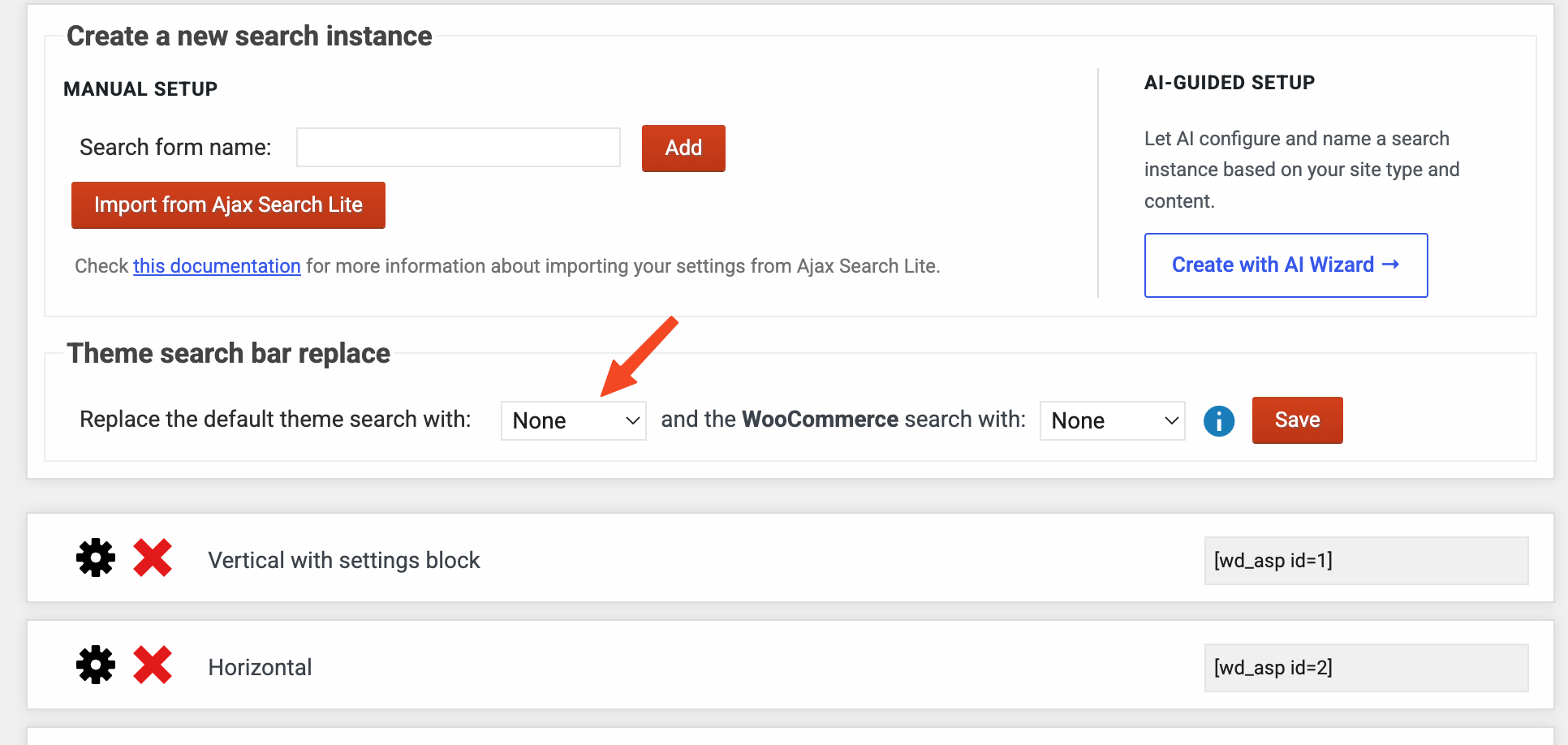
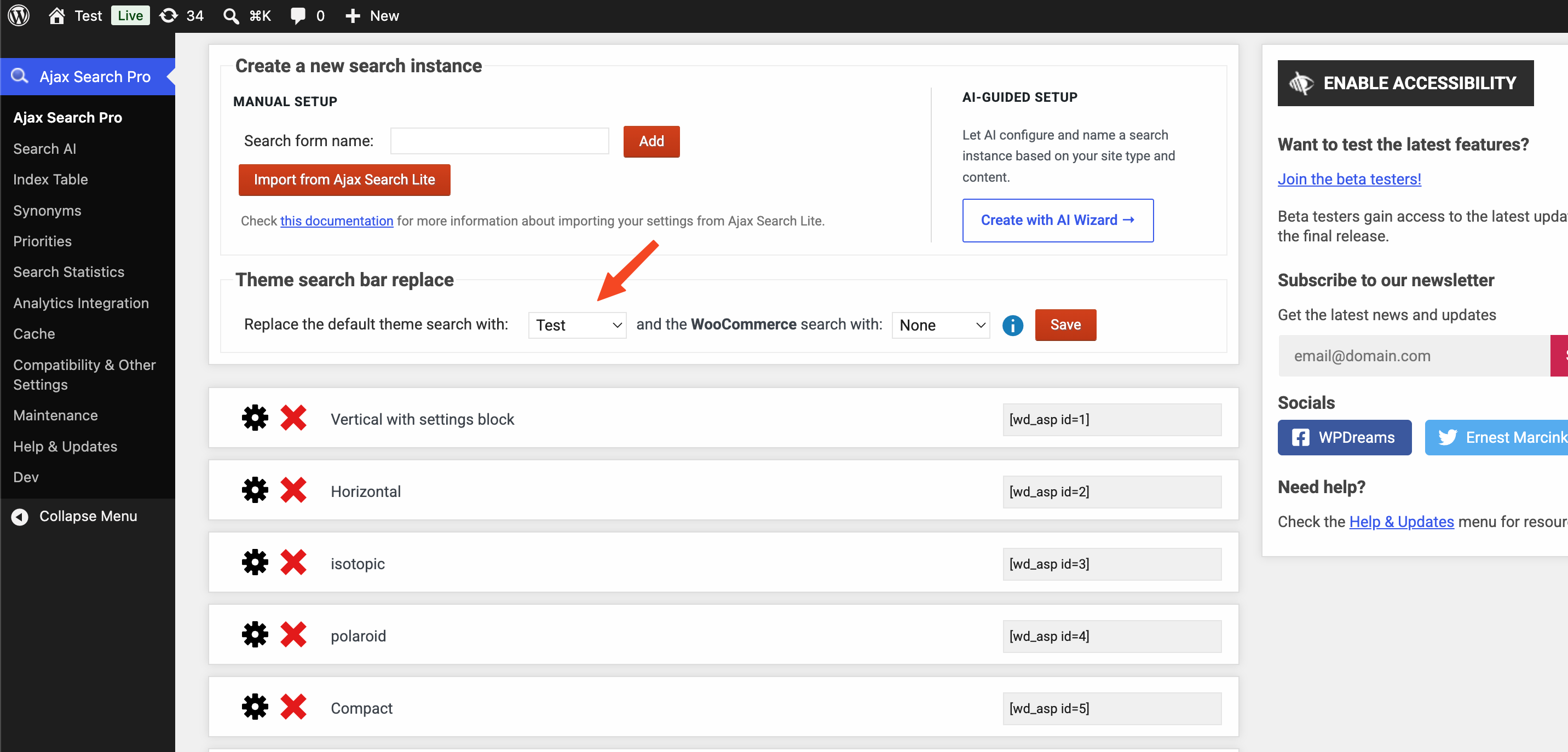
KeymasterIf you don’t want to replace the theme default search bar, you don’t have to, you can just disable that.
In that case the first search instance that has a search override enabled will replace the results with it’s own on the results page. That keeps the original theme search, with override to the first search instance.
With that however the live search results will disappear as those need the Ajax Search Pro search bar container to function.
KeymasterYou cannot access this content.
KeymasterHi!
That is the search results page, it’s layout is not affected by the plugin, it’s coming from the theme itself. It looks like the theme is printing the whole content, or the excerpt legnth was changed.
I would recommend looking at the theme builder or theme settings for this. Ajax Search Pro has no effect on it’s layout.
All the best,
ErnestKeymasterExactly – however there is an automatic replacemet feature as well, if the theme supports it. You can choose on the instances list which search bar you want Ajax Search Pro to replace the original theme search.
This feature highly depends on the theme, if their search form is hard-coded and doesn’t use the get_search_form hook, then the only way to replace it is manually through the source files.
That is also possible, after locating the source within a child theme. I think in your theme it is hard-coded into the header-navigation.php, it should be possible to add the PHP shortcode there.KeymasterHi George,
So the results page override is a feature to replace the results on the WordPress search results page (aka site.com/?s=phrase), with the ones originating from Ajax Search Pro. When the override is enabled, the plugin will take over the search query, and replace the results with it’s own. It can’t change the layout/design (because that is a results page feature), it sends it’s own results to the results page for display.
KeymasterYou cannot access this content.
-
AuthorPosts